Best Journaling Apps for Mac in 2026: Free and Paid
Compare five journaling apps for Mac: Apple Journal, Day One, Diarly, Diarium and Obsidian. Check prices, sync, privacy and export before choosing.

Apple Journal is our first recommendation for a free diary on a supported Mac. Choose Day One for a broader journal across devices, Diarly for Markdown writing within Apple’s ecosystem, Diarium for a one-time Pro purchase, or Obsidian for local files you can open in another editor. The best journaling apps for Mac differ most in what happens after you write: syncing to your phone, protecting attachments and getting your archive out.
This comparison uses official documentation and US store listings checked on 23 September 2026. It is an editorial assessment of documented capabilities, without hands-on Mac testing, measured sync speeds or verified export round trips; prices and compatibility can change by region and release.
The product images are credited publisher screenshots. They illustrate the apps, while the linked documentation establishes feature and plan limits.
Pick by the way you want to write
- Free Apple diary: Apple Journal — start here if your devices are supported.
- A journal across devices: Day One — organisation and media, with paid all-device access.
- Markdown in a dedicated diary: Diarly — Premium for sync and password protection; text encryption excludes attachments.
- A one-time upgrade: Diarium — Pro bought separately per platform.
- Local files and flexibility: Obsidian — build a simple journal with Daily notes.
Compare free and paid plans · Try a practical selection check
What matters when you journal at a keyboard?
A useful Mac journal should make it easy to write a longer entry, find a past detail and keep a copy outside the app. These five choices offer installed Mac applications; browser-only tools are outside this shortlist, and an installed app does not automatically mean every feature works offline.
Start with your second device. A free Mac diary may be enough on its own, but a Mac-and-phone habit can turn a free download into an annual subscription or two separate purchases.
Next, check what you want to preserve. A folder of text files, a PDF you can read and a complete archive with audio are different outcomes; an export button alone does not tell you which one you will get.
What can you use for free, and what costs extra?
| App | Free writing | Mac-and-phone sync | Main cost or limit |
|---|---|---|---|
| Apple Journal | Diary on supported Apple devices | iCloud | No app subscription; storage costs can apply |
| Day One | Unlimited text entries and journals; one photo per entry | Paid all-device access | Silver US$49.99/year; Gold US$74.99/year |
| Diarly | One journal with unlimited entries | Premium via iCloud | Store lists several subscription offers; confirm yours |
| Diarium | Core diary on Mac | Pro on each platform using sync | Pro for Mac: US$14.99 once in the checked US listing |
| Obsidian | Local Markdown notes | Optional paid Sync or your own compatible setup | Sync from US$4/month billed annually, or US$5 monthly |
Compare the total for the devices you will actually use. Obsidian’s entry Sync price is US$48 for a year when billed annually; Diarium’s Mac purchase does not unlock its iPhone or Android Pro version.
Diarly’s US listing showed yearly Premium offers of US$29.99 and US$34.99, plus a US$4.99 monthly option. Multiple offers appear together, so use the subscription screen to confirm eligibility and renewal price rather than treating the lowest listed amount as universal.
Apple Journal: start with the free option
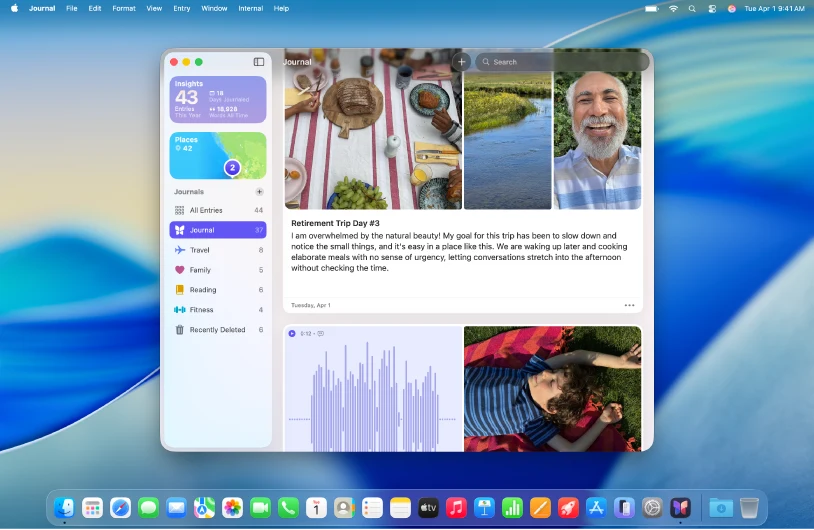
Apple Journal is a sensible first stop because a dated diary, multiple journals and multimedia entries may already cover your needs. Apple’s Mac guide documents writing, search, photographs and audio.
Apple introduced Journal on Mac with macOS Tahoe 26. If you are on an older release, check Apple’s compatible Mac list; a Mac that cannot run Tahoe or a later release needs another journal app with suitable system requirements.
Its protection guide describes iCloud syncing between Mac, iPhone and iPad, plus locking Journal with your login password or Touch ID. Apple’s iCloud security table lists Journal data as end-to-end encrypted under both standard and Advanced Data Protection.
The archive still needs attention. Apple’s Mac export instructions document PDF output, and its protection guide recommends Time Machine backups; a PDF is useful for reading but does not establish that another app can rebuild every attachment and field.
| Useful here | Check before committing |
|---|---|
| No journal subscription | Supported Apple devices required |
| Multiple journals and multimedia entries | Your available iCloud storage |
| iCloud sync and an app lock | A separate backup and migration plan |
Best for: Someone who writes on a Mac and other supported Apple devices and wants a straightforward diary without another subscription.
Skip if: Android or Windows access is essential, or editable plain-text files are your main requirement.
The Apple Journal vs Day One comparison explores that particular choice in more detail.
↓ See Apple Journal in the comparison table
Day One: a broader archive, with paid sync
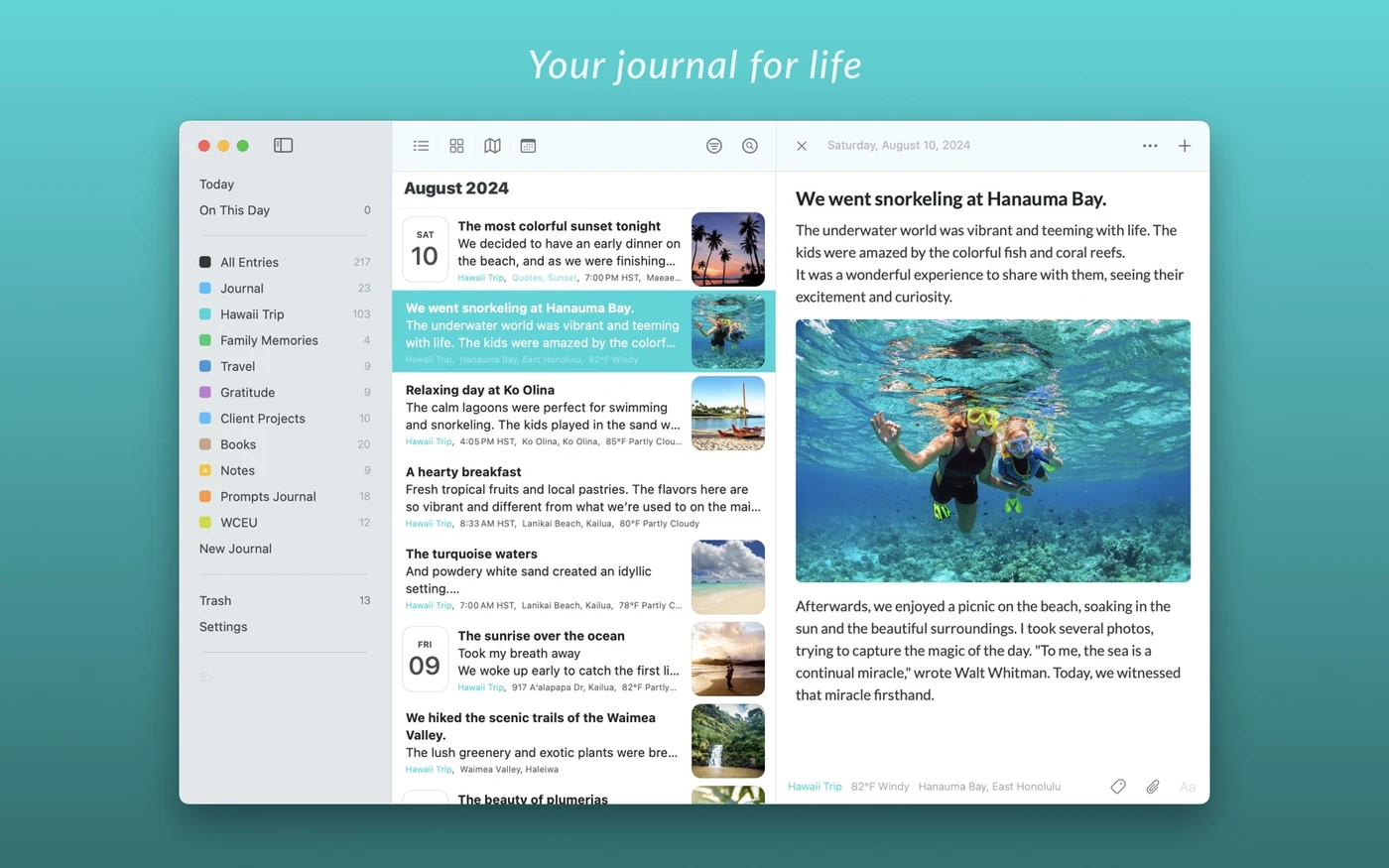
Day One is our pick when you want a dedicated diary with tags, filters, templates and several ways to revisit an archive. Its current plans include unlimited text entries and journals in Basic, with one photo per entry and one-device access.
For an everyday Mac-and-phone workflow, budget for Silver. It adds all-device access, richer media and audio recording; Gold adds optional AI features, which are unnecessary for ordinary writing and searching.
The Mac export matrix is a practical strength: PDF, JSON and plain text/Markdown are documented. JSON can include media, whereas the text/Markdown export excludes photos, so use the format that matches what you need to keep.
Day One also documents offline entry creation and editing. Optimised media storage can leave attachments needing a download; check the files you care about before travelling without a connection.
Its encryption FAQ says new journals use end-to-end encryption, including media. Older journals and encryption-key backup settings deserve a separate check, and an exported file does not inherit the protection of the synced journal.
If you enable Gold’s optional AI, read the separate AI processing explanation: server-based features receive decrypted content for processing, outside the journal’s E2EE boundary. Some supported features can run on-device, and feature availability differs on Mac.
| Useful here | Check before committing |
|---|---|
| Tags, filters and templates in Basic | All-device access is paid |
| Several Mac export formats | Text export does not preserve photos |
| Documented offline writing | Local availability of older media |
Best for: A writer building a long-term diary across devices who wants ready-made organisation and several export choices.
Skip if: You require free Mac-and-phone sync, a one-time purchase, or a plain folder as the primary archive.
↓ See Day One in the comparison table
Diarly: Markdown writing with an attachment caveat
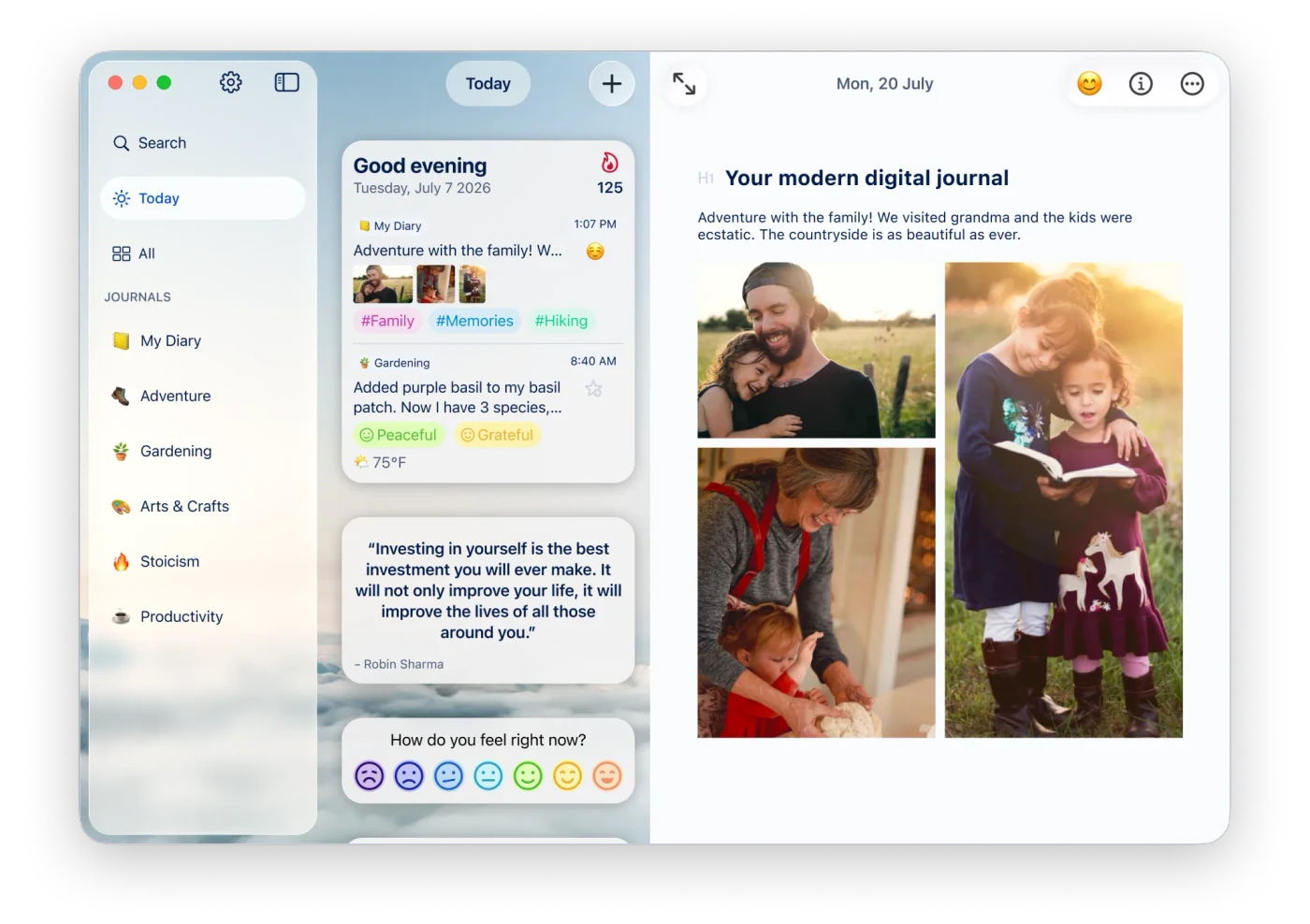
Diarly puts Markdown editing inside a dedicated diary, with journals and dated entries already organised for you. Its plan comparison lists a free single journal with unlimited entries; Premium adds iCloud sync, multiple journals and password protection across its Apple apps.
The US App Store listing contains the different subscription offers noted above. Confirm the recurring charge in the app, including any optional AI+ add-on, before accepting a trial.
The most important limitation is in the encryption instructions. Setting a password as a Premium user enables text encryption, but images, videos and other attachments are excluded; that distinction matters if your journal contains photographs of private documents or personal recordings.
For portability, Diarly’s export guide describes a Markdown ZIP with entry files and a separate attachment folder. It also documents PDF and Rich Text output; the pricing page places advanced export among Premium features.
| Useful here | Check before committing |
|---|---|
| Markdown in a purpose-built diary | Sync and password protection require Premium |
| Documented offline access | Apple ecosystem focus |
| Markdown archive with attachment files | Diarly’s text encryption excludes attachments |
Best for: Someone who likes Markdown but wants diary navigation and iCloud sync without organising an Obsidian vault.
Skip if: You need Android access, free cross-device sync, or app-level encryption covering every attachment.
↓ See Diarly in the comparison table
Look beyond the lock icon
An app lock, encrypted cloud sync and a protected backup solve different problems. Check which applies to your text, attachments and exported files.
Diarium: buy Pro once on each platform
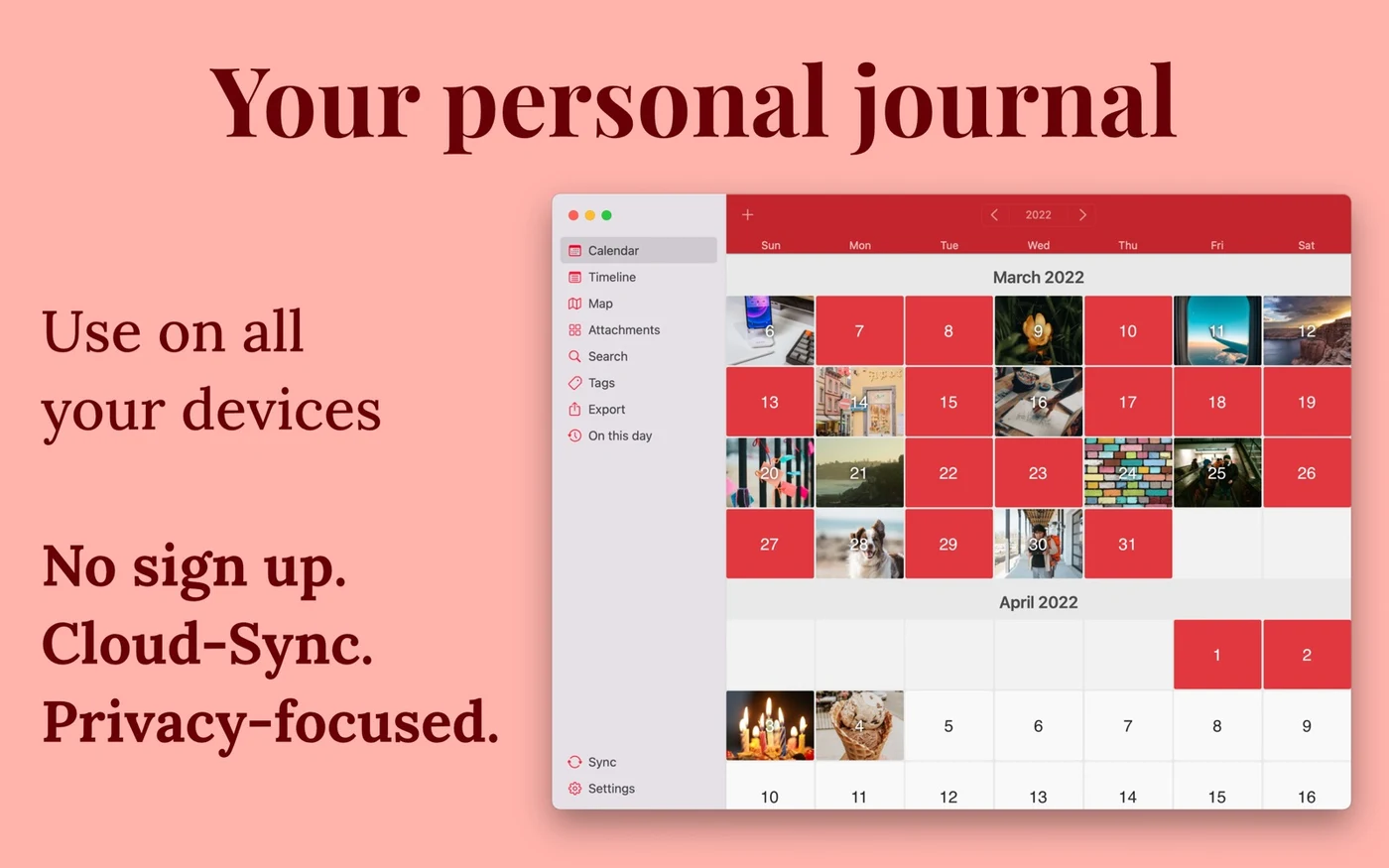
Diarium is the clearest paid option here for readers avoiding subscriptions. Its Mac listing showed US$14.99 for Pro, and the developer’s feature guide explains that the purchase is per platform: a Mac licence does not cover your phone.
Pro sync uses storage you already control, including iCloud, OneDrive, Google Drive, Dropbox or WebDAV. The app does not require a Diarium account, and you can keep entries on the device; you still need an account with your chosen provider if you enable cloud sync.
The diary includes calendar and timeline views, tags and search. The Mac listing documents HTML, JSON and plain-text exports, plus Word export with Pro, giving you several ways to preserve readable copies.
Privacy needs precise wording. The developer confirms that E2EE is not enabled by default, and the linked technical discussion describes an opt-in beta; do not equate using your own cloud with automatically having end-to-end encryption.
| Useful here | Check before committing |
|---|---|
| Pro has no recurring app subscription | Separate purchase for each platform |
| Several personal cloud providers | Cloud sync requires Pro |
| HTML, JSON and text exports | E2EE remains an opt-in beta |
Best for: A Mac user who wants a conventional diary, a one-time upgrade and a choice of cloud storage, including a household with Android or Windows devices.
Skip if: Default E2EE is essential or you want one purchase to unlock every platform.
↓ See Diarium in the comparison table
Obsidian: keep the journal as local files
Obsidian suits readers who want their journal to remain a folder of Markdown files. Its built-in Daily notes feature opens or creates a dated note, can use a template, and can be assigned a keyboard shortcut.
That is enough for a simple diary: create a journal folder, enable Daily notes and write. Our Obsidian journal setup guide covers the details; installing a collection of community plugins is optional.
The free app and optional Sync pricing separate writing from hosting. You can work locally without paying or creating an account; the entry Sync plan costs US$4 a month billed annually or US$5 month to month, and your own compatible sync arrangement is another possibility.
Obsidian’s security documentation makes an important distinction: Sync defaults to end-to-end encryption for its remote vault, but Obsidian does not encrypt the local vault. A folder you can freely open in another editor can also be read by someone with access to those files, so protect the Mac account and backups appropriately.
| Useful here | Check before committing |
|---|---|
| Free local writing without an account | Initial folder and template setup |
| Ordinary Markdown files | Local files are not encrypted by Obsidian |
| Daily notes and keyboard shortcuts | Phone sync needs a separate choice |
Best for: Someone comfortable with files and folders who values editable text and wants to fit journaling into an existing notes system.
Skip if: You want a finished diary with minimal setup, built-in app-level protection for local notes, or phone sync configured automatically.
↓ See Obsidian in the comparison table
How can you choose without moving your whole journal?
Try one short entry, one photograph and one distinctive phrase you can search for tomorrow. If phone access matters, confirm the required plan and test that same entry on both devices before importing an existing archive.
Turn off the connection and check writing, reopening and attachment playback separately. Then export the sample, open it outside the app and look for the date, formatting and original attachment; readable output is useful even when it cannot be re-imported.
For a new Apple-only diary, start with Apple Journal. Pay for another tool when you can name the specific limitation it solves: Day One’s organisation and exports, Diarly’s Markdown diary, Diarium’s purchase model or Obsidian’s local files.
Frequently asked questions
What is the best journaling app for Mac?
Apple Journal is our starting recommendation for a free diary on a supported Mac. Day One suits a richer journal across devices, Diarly suits Markdown writing within Apple’s ecosystem, Diarium offers a one-time Pro purchase, and Obsidian keeps your journal in local Markdown files. The right choice depends on sync, privacy and export needs.
Can I keep a journal on my Mac for free?
Yes. Apple Journal has no app subscription, Obsidian is free for local writing, and Day One, Diarly and Diarium have free versions. Free writing does not always include phone sync: Day One requires a paid plan for all-device access, Diarly requires Premium, and Diarium requires Pro on each platform used for sync.
Does Apple Journal work on Mac?
Apple provides Journal for supported Macs and documents syncing with iPhone and iPad through iCloud. Check compatibility on your Mac before choosing it. Its Mac guide documents PDF export and recommends Time Machine for backups; syncing is not a separate backup.
Which Mac journal app has no subscription?
Apple Journal and local Obsidian writing need no subscription. Diarium Pro is a one-time purchase per platform; its US Mac listing showed US$14.99 when checked on 23 September 2026. Cloud-storage charges and purchases for other platforms may add to the cost.
Are Mac journaling apps end-to-end encrypted?
Apple lists Journal data as end-to-end encrypted in iCloud; Day One enables it for new journals but sends decrypted content to server-based AI if you choose to use those features. Diarly’s optional Premium encryption covers text, not attachments; Diarium documents a separate opt-in beta. Obsidian Sync defaults to end-to-end encryption, but local vault files are not encrypted by Obsidian.
Start with the free version of the app that fits your devices, write today’s entry and make a small export. Opening that file now is more useful than discovering its limits after a year of writing.